

The contact model
A contact has:- Phone number in international format (the primary identifier).
- Display name, first name, last name (populated from imports, integrations, or replies).
- Custom fields you define on your company (any extra column you push from a CSV or an integration becomes a field, lowercased and stripped of spaces).
- Tags: free-form labels you attach to contacts, most often applied automatically at import time.
- Consent records per (channel, messaging account). See Consent.
- Timestamps: when the contact was created, when they last messaged you, when their consent last changed.
Importing contacts from CSV
You can import up to 100,000 contacts per file. Larger sets have to be split.File format
- The first column must be
phoneNumber, in international format without the leading+(for example,33601020304). - Column names are case-insensitive and become custom fields with normalized names (lowercase, no spaces).
- Any invalid phone number in the file rejects the entire file; nothing is imported.
- Do not rename the required columns or change their order.
Import flow
1
Upload the CSV
Open the contacts area and upload your CSV file. Simio validates the phone-number column before starting the import.
2
Track progress in real time
The import runs in the background. A progress indicator shows how many rows have been processed and surfaces any error message from the parser.
3
Automatic tag
Every import automatically creates a new tag named after the file name and the import timestamp, and applies it to every contact in that file. You can optionally add extra tags at import time.
4
Optional opt-in on a specific account
You can check a box to mark every imported contact as opted in on a specific connected messaging account. Only do this if you have obtained explicit consent from the contact to be messaged on that account, in a form your legal team can defend.
5
Optionally save as a segment
Once the import is complete, click the action button on the import row to save the import’s tag as a segment for reuse.
Deduplication and updates
Re-importing contacts that already exist is safe:- Existing contacts are matched on phone number and updated with any new field values in the file.
- No duplicate row is created.
- You can re-import the same base to enrich existing contacts with a new custom field (for example, adding a
birthdaycolumn later).
Tags
Tags are simple labels you attach to any contact. They are created:- Automatically at import, one tag per import (with the file name and timestamp).
- Manually, from the contact detail view or in bulk from the contacts list.
- Through integrations, for example when a Brevo sync assigns a tag to a synced segment.
Segments
A segment is a saved query over your contact list, built from one or more filters. Segments update dynamically: a contact meeting the rules is automatically included; a contact that stops meeting them is automatically excluded.Available filters
Identity and profile
Consent
See Consent and opt-in status for what each status means.
Dates
Date filters compare a contact’s date against either a specific date or a number of days relative to today.Engagement
Engagement filters target contacts based on how they interacted with your messages. Each one is built from four parts:- Event: the interaction to look for.
- Time window:
over all time,more than,less than,after, orbefore. Every option exceptover all timetakes a date or a number of days. - Frequency:
at least onceorzero times. - Source:
from any flow,from campaign,from automation, orfrom chatbot.
For example, Clicked URL,
less than 30 days, zero times, from campaign matches contacts who have not clicked any campaign link in the last 30 days. Use zero times to build re-engagement or exclusion segments.
Combining filters with AND and OR
Filters are organized into blocks:- Inside a block, criteria are combined with OR: a contact matches the block if it meets at least one of its criteria. Click Add criteria next to a block to add an OR condition.
- Blocks are combined with AND: a contact enters the segment only if it matches every block. Click Add criteria under the last AND to start a new block.
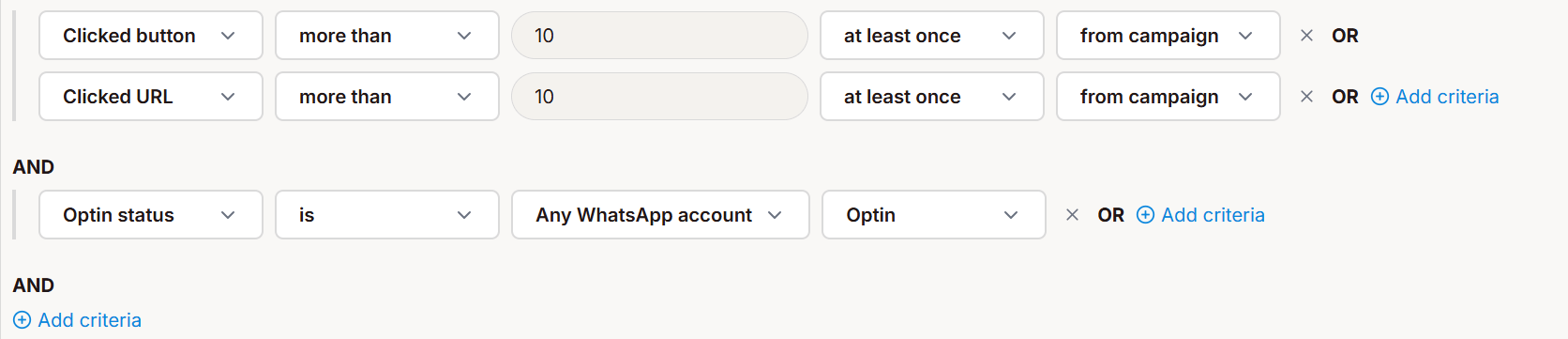
- Clicked a button or a URL from a campaign at least once more than 10 days ago, and
- Are opted in on any WhatsApp account.
Consent and targeting
When you send a campaign or automation on a specific messaging account, Simio filters the audience against the consent records for that (channel, account) pair. A contact who is opted in on account A but not on account B will not receive a send on account B, even if they belong to the targeted segment.A contact can show up as “never opt-in” on an account and still have received Utility messages (order confirmations, service updates) from you, because Utility messages don’t require an explicit opt-in on WhatsApp. See Marketing vs Utility. To convert those contacts into opt-ins, add an opt-in step at the end of your Utility flow.
AI-assisted filters
The contacts list supports natural-language filtering: type a sentence like “customers who bought at least twice this year and opted in on WhatsApp France” and Simio proposes a matching set of rules you can save as a segment. The AI never sends messages on its own; it only proposes segment rules for you to review and confirm.Known limitations
- CSV rejection is all-or-nothing: a single invalid phone number rejects the entire file. Clean the file and reupload.
- Import size cap of 100,000 rows per file. Larger bases must be split into multiple files.
- No cross-account merge: two contacts with different phone numbers cannot be merged into one, even if they represent the same person. You can do that kind of operation in your CRM.
- Free-text search is limited to phone-number and full name today; searching a partial text, by first name for example, is not possible.